A technical SEO checklist is a list of checks that make sure Google can find, crawl, index and load your website without problems. If any of these basics break, even great content can struggle to rank. Below are 20 checks you can run on a Canadian business website, grouped so you can work through them in one afternoon or hand them to your developer.
Key takeaways
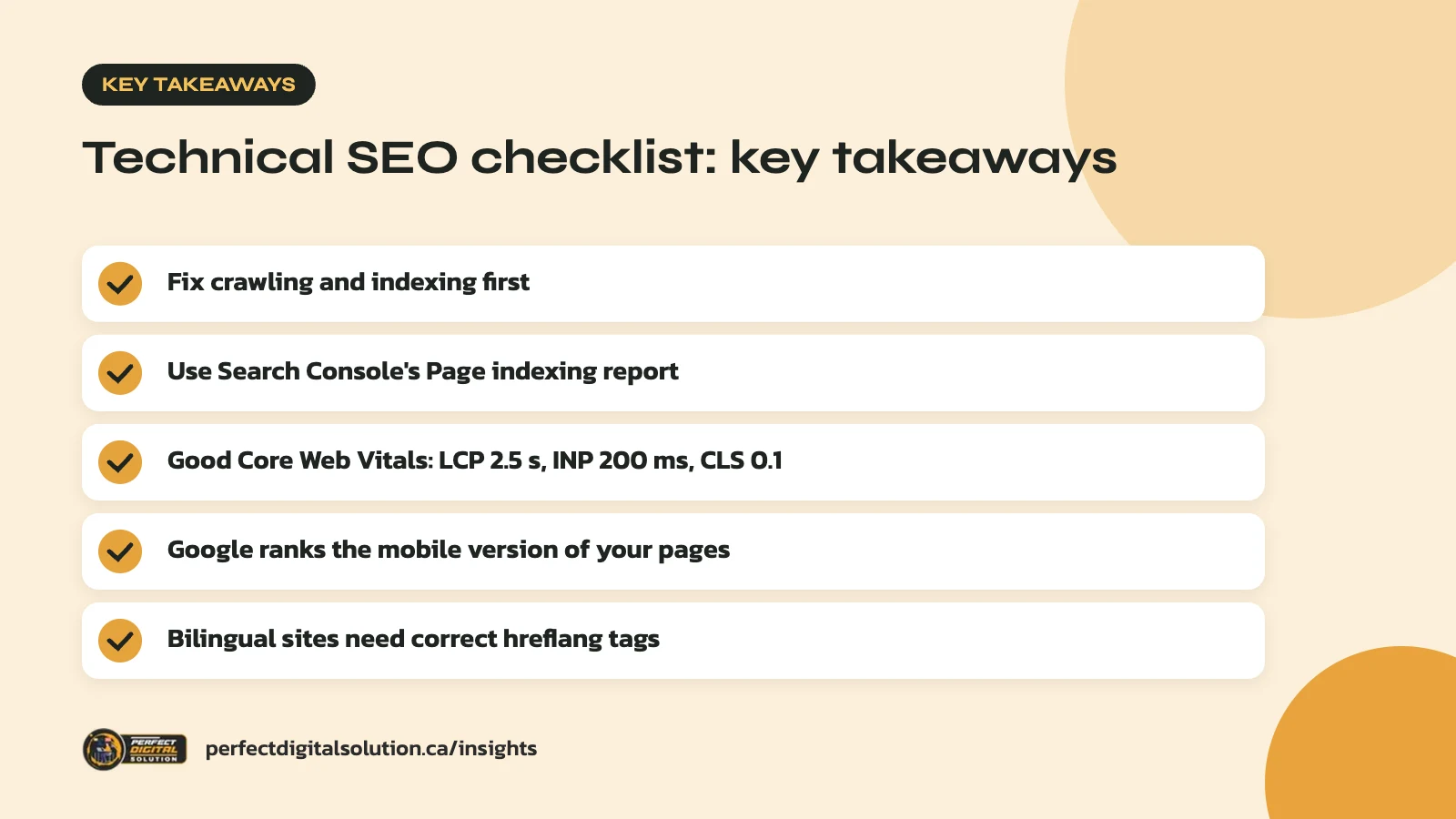
- Start with crawling and indexing: if Google can’t index a page, nothing else matters.
- Use Google Search Console’s Page indexing report as your main audit tool.
- Aim for good Core Web Vitals: LCP within 2.5 s, INP under 200 ms, CLS under 0.1.
- Google ranks the mobile version of your pages, so check mobile first.
- Bilingual sites need correct hreflang tags for English and French pages.
What a technical SEO checklist covers and why it matters
A technical SEO checklist covers the parts of your site that search engines read before they ever judge your content. That includes your robots.txt file, XML sitemap, redirects, canonical tags, page speed, mobile layout and security.
Think of it like a building inspection. Nobody visits a store because the wiring is good, but bad wiring can shut the store down. In the same way, a single wrong setting can hide a whole section of your site from Google.
In our audits we often find small issues that have been sitting quietly for months. A plugin added a noindex tag, an old domain still loads without redirecting, or a theme update slowed down every page. None of these are hard to fix once you know where to look.
You will need two free tools for most checks: Google Search Console and a browser. A crawler tool helps on larger sites, but it is not required to get started.
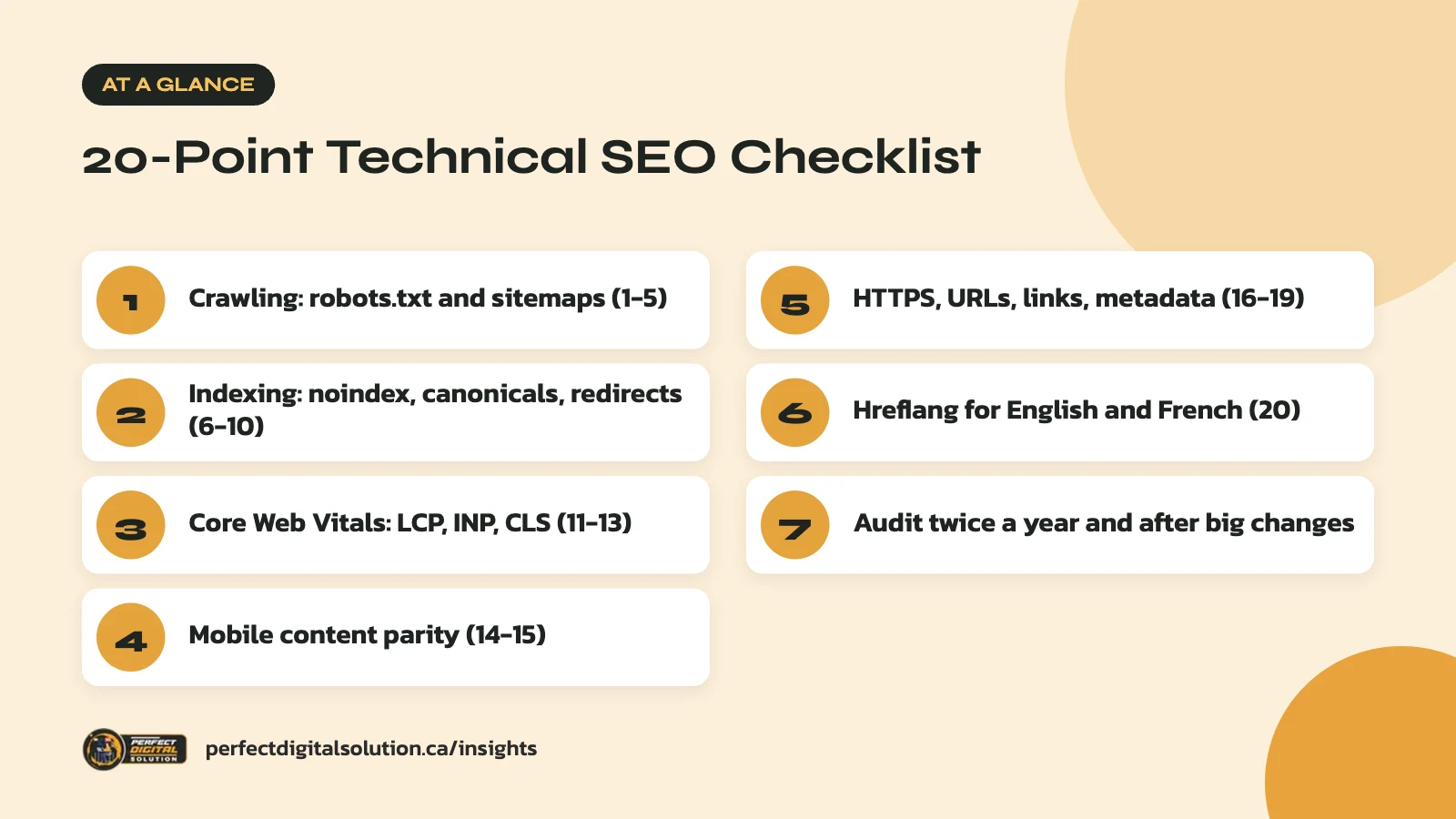
Crawling checks (1 to 5)
Crawling checks confirm that Google’s crawler can reach the pages you want people to find.
- Review robots.txt. Open yoursite.ca/robots.txt and make sure it does not block important folders such as /services/ or /products/. Robots.txt controls which URLs crawlers can access. Google is clear that it is not a way to keep a page out of search results, so use noindex or a password for that.
- Check your XML sitemap. Your sitemap should list only live, indexable pages using full, absolute URLs. Google limits each sitemap file to 50,000 URLs or 50 MB uncompressed, so large stores may need a sitemap index.
- Submit the sitemap in Search Console. Use the Sitemaps report to submit it and look for processing errors. You can also add a
Sitemap:line to robots.txt. - Keep lastmod honest. Google uses the lastmod date only when it is consistently accurate. Update it for real content changes, not for a new copyright year in the footer. Google ignores priority and changefreq values, so don’t spend time on them.
- Look for server errors. Pages that return 5xx errors can’t be crawled. If you see them in Search Console, talk to your host about server capacity or plugin conflicts.
Indexing checks (6 to 10)
Indexing checks confirm that the pages Google crawls are actually stored and eligible to appear in search.
6. Read the Page indexing report
The Page indexing report shows which URLs are indexed and why others are not. Common reasons include “Crawled – currently not indexed,” “Discovered – currently not indexed,” “Page with redirect” and “Not found (404).” Not every excluded URL is a problem. Focus on whether your key service, product and location pages are indexed.
7. Hunt for accidental noindex tags
Look for “URL marked ‘noindex'” in the report. This often happens when a staging setting is left on after launch. For noindex to work as intended, the page must not be blocked in robots.txt, because Google has to crawl the page to see the tag.
8. Set canonical tags correctly
Each indexable page should have a self-referencing canonical tag with an absolute URL. Google’s guide to consolidating duplicate URLs warns against conflicting signals, such as a sitemap listing one URL while the canonical tag points to another.
9. Make sure only one version of your site loads
Type in http://, https://, www and non-www versions of your domain. All of them should land on one preferred HTTPS version through a permanent redirect.
10. Fix redirect chains and broken links
Use permanent (301 or 308) redirects for pages that have moved for good, and point each old URL straight to its final page. Fix internal links that lead to 404 pages. A 404 is fine for a page you removed with no replacement, but moved pages should redirect.
Page speed and Core Web Vitals checks (11 to 13)
Page speed checks measure how fast your pages load, respond and settle, using Google’s Core Web Vitals.
Google says it highly recommends that site owners achieve good Core Web Vitals. You can find your scores in the Core Web Vitals report in Search Console or by testing a page in PageSpeed Insights.
| Check | Metric | Good target |
|---|---|---|
| 11 | Largest Contentful Paint (LCP): loading | Within 2.5 seconds |
| 12 | Interaction to Next Paint (INP): responsiveness | Under 200 milliseconds |
| 13 | Cumulative Layout Shift (CLS): visual stability | Under 0.1 |
Slow LCP usually comes from large hero images, slow hosting or too many scripts. Poor INP often points to heavy JavaScript from page builders, chat widgets or tracking tags. High CLS happens when images, ads or banners load without reserved space and push content down.
Mobile checks (14 and 15)
Mobile checks matter because Google uses the mobile version of your pages for indexing and ranking.
- 14. Keep content the same on mobile and desktop. If your mobile layout hides text, reviews or structured data that appear on desktop, Google may never see them. Tabs and accordions are fine as long as the content is in the page.
- 15. Don’t hide primary content behind taps. Google won’t click, swipe or type to load content. If your main text only appears after a user taps “load more,” it may not be indexed.
Most modern WordPress and Shopify themes are responsive, which makes parity easier. Still, check your key pages on a real phone, not just a resized desktop browser.
Security, structure and on-page technical checks (16 to 19)
These checks make sure your site is secure, logically organized and sends clear signals about each page.
- Use HTTPS everywhere. Every page should load over HTTPS with a valid certificate. Watch for mixed content, such as images still loading over http://, and avoid redirects from HTTPS back to HTTP.
- Keep URLs short and readable. A URL like /services/roof-repair-calgary/ tells people and search engines what the page is about. Avoid long strings of numbers or session IDs.
- Link to every important page. Pages with no internal links pointing to them (orphan pages) are hard for Google to find and understand. Link key pages from your menu, footer or related content.
- Check titles, meta descriptions and structured data. Each page needs a unique title and meta description. If you use structured data, such as LocalBusiness or Product markup, make sure it matches what visitors can see on the page.
If you run an online store, our Shopify SEO checklist covers store-specific issues like duplicate collection URLs and product variants.
Bilingual site check (20): hreflang for English and French
If your site has English and French versions, hreflang tags tell Google which version to show to which users.
Many Canadian businesses serve customers in both official languages, especially in Quebec, Ontario and New Brunswick. Use codes like en-CA and fr-CA, or just en and fr. Google’s hreflang guidelines require return links: each version must list itself and every other version, or the tags are ignored.
You can add hreflang in the page head, in HTTP headers or in your XML sitemap. Google treats the three methods the same, so pick the one that is easiest to maintain with your CMS or translation plugin.
How often to run a technical SEO checklist
Run the full technical SEO checklist at least twice a year, and run a quick check after any major change.
Major changes include a redesign, a new theme, a platform move, a domain change or a large batch of new pages. Google’s core updates are also a good reminder to review your site, as we explained in our look at the December 2025 core update.
Between full audits, a monthly glance at Search Console is usually enough. Check these three things:
- Any sudden jump in non-indexed pages in the Page indexing report
- New issues in the Core Web Vitals report
- Email alerts from Search Console about security or manual actions
When you find issues, fix them in order of impact. Problems that block indexing of important pages come first, then speed and mobile issues, then smaller clean-up items. If you are building your yearly plan now, add these audits to your 2026 digital marketing plan so they don’t get forgotten.
How Perfect Digital Solution can help
If you would rather not run this technical SEO checklist yourself, our SEO services include a full technical audit with a clear, prioritized list of fixes. We can also make the changes on WordPress, Shopify and WooCommerce sites. Contact our team to talk about your website.
Related reading: How Long Does SEO Take to Work? Realistic Timelines for Canadian Businesses, What Google’s June 2025 Core Update Means for Small Business Websites and SEO vs Google Ads: Which Should a Canadian Small Business Start With?. · Calgary keyword research
Frequently asked questions
Sources
- Core Web Vitals and Google Search results – Google Search Central
- Page indexing report – Search Console Help
- How to specify a canonical URL with rel=”canonical” and other methods – Google Search Central
- Build and submit a sitemap – Google Search Central
- Mobile-first indexing best practices – Google Search Central
- Tell Google about localized versions of your page – Google Search Central
Written by the Perfect Digital Solution team. We use AI tools to support research and drafting, and every fact in this article is checked by our team against the sources listed above.